> ## Content Index
> Fetch the complete content index at: https://evil-penguin.com/llms.txt
> Use this file to discover other available public pages before exploring further.

# Rails design governance
- URL: https://evil-penguin.com/rails-design-governance/
- Published: 2024-06-04T14:49:45.000Z
- Updated: 2026-11-16T23:02:17.000Z
- Description: In this post I will discuss why it is important to maintain a good design and order when it comes to separating different areas of your website which have different designs.
- Author: evilpenguin
- Tags: Rails, Tailwind

It is important to maintain code sanity and order in your applications. This is widely known and here I will propose how to govern your files for your Rails application when it comes to style sheets and script (js) files.  
  
It should also prove to be most efficient to be able to load only the files needed for a given page. And even easier to identify potential bugs. 

# INTRO 

Start by creating a new Rails app:  
  
rails new Playground --database=postgresql --skip-action-mailer --skip-action-mailbox --skip-test --skip-system-test --skip-jbuilder --css=tailwind  
Just for fun, and to make this discussion more attractive, I've decided to use some cool flags when creating the rails app, we won't be using anything related to mailing so why have those installed? I bet it's good to see some flags and get to know them. Also I won't be using Rails test suite.  
  
\* I'm using: ***Rails version: 7.1.3.2 & Ruby version: ruby 3.3.0 \[x86\_64-linux\]***  
  
Now let's initialize the Data Base:  
  
bin/rails db:create  
We will be creating 3 different areas in our application, for each we will render a different Layout and different resources (Visitors, Admin & Playground)  
  
Let's generate the controllers with their views now:  
  
rails g controller Visitor home --no-helper  
  
rails g controller Admin control\_panel --no-helper  
  
rails g controller Playground lobby --no-helper  
This commands will generate the following:
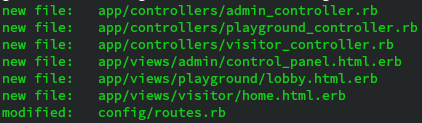
![](https://evil-penguin.com/content/images/2026/11/Screenshot_from_2024-03-28_18-38-20.png)

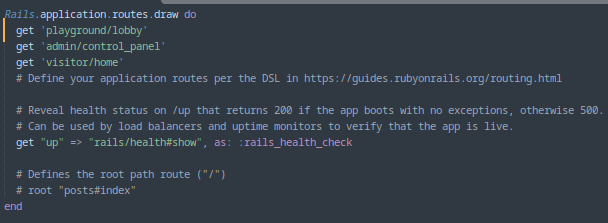
The routes look something like this:

![](https://evil-penguin.com/content/images/2026/11/Screenshot_from_2024-03-28_18-43-59.png)

# ROUTES

We should define our default routes for each of our areas:  
  
The root of the app will fall to Visitors#home.  
  
- ***/*** should be the home
- ***/playground*** should show the lobby view
- ***/admin*** should show the control\_panel view

So the routes should look something like this:  
  
Rails.application.routes.draw do  
 root "visitor#home"  
 get "admin", to: "admin#control\_panel"  
 get "playground", to: "playground#lobby"  
end

# LAYOUTS & STYLESHEETS

Now let's create a layout for each of our different Areas and each layout and remove the originalcp app/views/layouts/application.html.erb app/views/layouts/visitor\_layout.html.erb   
cp app/views/layouts/application.html.erb app/views/layouts/admin\_layout.html.erb   
cp app/views/layouts/application.html.erb app/views/layouts/playground\_layout.html.erb  
rm app/views/layouts/application.html.erb   
Add each layout to the controller where they belong  
  
*app/controllers/admin\_controller.rb*class AdminController < ApplicationController  
**layout "admin\_layout"**  
 def control\_panel  
 end  
end*app/controllers/playground\_controller.rb*class PlaygroundController < ApplicationController  
 **layout "playground\_layout"**  
 def lobby  
 end  
end*app/controllers/visitor\_controller.rb*class VisitorController < ApplicationController  
 **layout "visitor\_layout"**  
 def home  
 end  
end  
Now let's analyze each layout and modify to our needs  
  
Currently this is how the "/" network looks, look at the image to see what is being loaded.
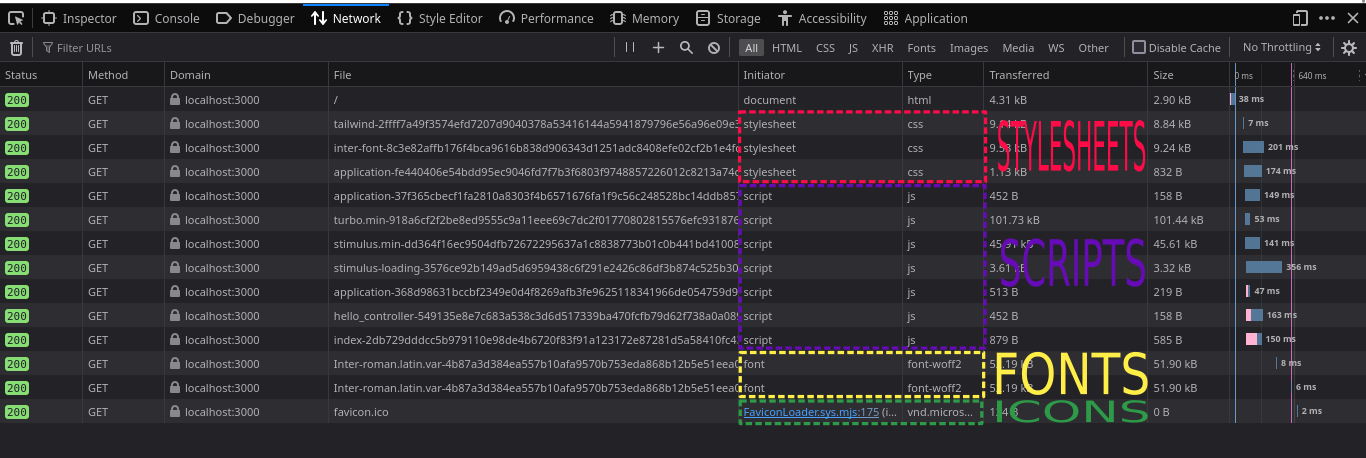
![](https://evil-penguin.com/content/images/2026/11/JS_Load1.png)

On the image we can see the **application stylesheet** and **application script** we should load a different stylesheet and a script for each of our areas, on the layout we can control what we are loading, so let's change that.  
  
Start on the visitor layout (which corresponds to the visitor\_controller)   
  
If you have a closer look in the visitor\_layout.html.erb there is this line:  
  
<%= stylesheet\_link\_tag "application", "data-turbo-track": "reload" %>   
This line is loading our stylesheets so now we should remove the default application.css and setup each stylesheet for each layout.  
  
rm app/assets/stylesheets/application.css   
*app/assets/stylesheets/visitor.css*/\*  
 \*= require\_tree ./visitor  
 \*/*app/assets/stylesheets/playground.css*/\*  
 \*= require\_tree ./playground  
 \*/  
*app/assets/stylesheets/admin.css*/\*  
 \*= require\_tree ./admin  
 \*/  
And for each layout set the correct stylesheet:  
  
*app/views/layouts/visitor\_layout.html.erb*<%= stylesheet\_link\_tag "application", "data-turbo-track": "reload" %>  
<%= stylesheet\_link\_tag "visitor", "data-turbo-track": "reload" %>*app/views/layouts/playground\_layout.html.erb*<%= stylesheet\_link\_tag "application", "data-turbo-track": "reload" %>  
<%= stylesheet\_link\_tag "playground", "data-turbo-track": "reload" %>*app/views/layouts/admin\_layout.html.erb*<%= stylesheet\_link\_tag "application", "data-turbo-track": "reload" %>  
<%= stylesheet\_link\_tag "admin", "data-turbo-track": "reload" %>  
Now if we load the root page (***visitors#home***) you should see a small difference on the stylesheet, instead of application now it should show visitors css  
  
# JAVASCRIPT & IMPORTMAP

Now we must set the javascript files:  
  
mkdir app/javascript/visitor app/javascript/admin app/javascript/playground  
And now let's add js library which we will use for the admin area "**d3**"  
  
bin/importmap pin d3  
It is very important to append "**,preload: false"** to all the pins which we don't want to be loaded. Else all of this tutorial would be waste.  
  
Since I don't want to load the d3 library for all the areas, then I will append preload: false to each pin.  
  
For now we won't use the *app/javascript/application.js* this file can be helpful to add a library to ALL the areas, for now we should delete all the contents of this file, remove the imports there so that it wont load anything.  
  
Now we can add to our pins the directories which we pointed before:  
  
\# Pin npm packages by running ./bin/importmap  
  
pin "application"  
pin "@hotwired/turbo-rails", to: "turbo.min.js"  
pin "@hotwired/stimulus", to: "stimulus.min.js"  
pin "@hotwired/stimulus-loading", to: "stimulus-loading.js"  
**pin\_all\_from "app/javascript/admin/controllers", under: "admin/controllers", preload: false**  
pin "d3", preload: false # @7.9.0  
...  
...  
...  
With this configuration, we are telling our server to load by default on all the areas the application.js file, turbo, stimulus & stimulus-loading libraries.  
  
As you might have noticed I changed the **controllers** pint to -> **admin/controllers** and appended **preload: false**  
  
I don't want to load all the stimulus controllers for all the areas. So in order to separate it for each area I will create a new file:  
  
mkdir app/javascript/admin  
mv app/javascript/controllers app/javascript/admin  
I will take advantage of the already created directory controllers to make my admin directory compatible with stimulus out of the box.  
  
So at this point the Network should load only this:
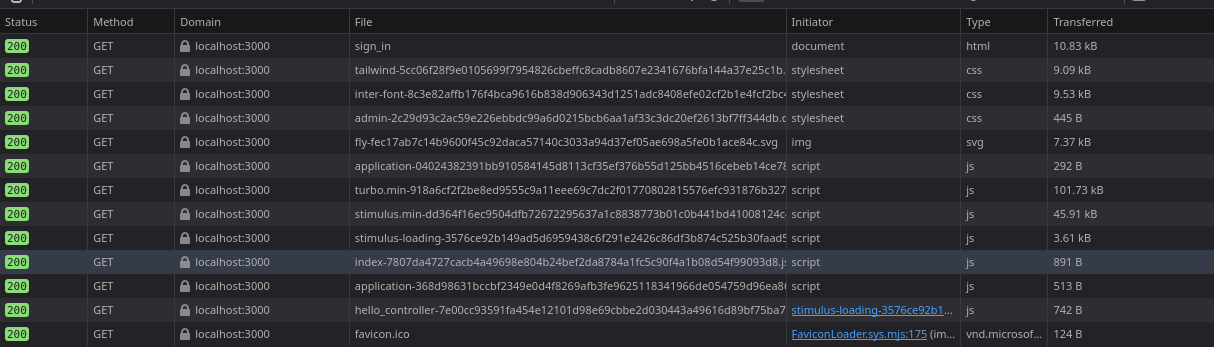
![](https://evil-penguin.com/content/images/2026/11/Screenshot_from_2024-03-31_20-21-42.png)

Sometimes we want to add a custom js library to the whole app, only to a certain area (Visitor, Admin or Playground) or only to a certain page. This is possible:  
  
\- Global (app wide) => import to *application.js*  
\- Particular Area => layout import with a js file to the ***area/*** directory (**visitor/, admin/, playground/**)  
\- Singular Page => Read about it bellow:  
  
When we want to add the import only in a *singular page* we can implement the content\_for with a yield as described here:  
[https://github.com/rails/importmap-rails/tree/f2779ee6a048d0e56c12ceb4a56b680c7ab272b2?tab=readme-ov-file#selectively-importing-modules](https://github.com/rails/importmap-rails/tree/f2779ee6a048d0e56c12ceb4a56b680c7ab272b2?tab=readme-ov-file&ref=evil-penguin.com#selectively-importing-modules)  
So for each area I will create a yield head:  
  
*visitor\_layout.html.erb*<head>  
 ...  
 <%= javascript\_importmap\_tags %>  
 <%= yield(:visitor\_head) %>  
</headadmin*\_layout.html.erb*<head>  
 ...  
 <%= javascript\_importmap\_tags %>  
 <%= yield(:admin\_head) %>  
</headplayground*\_layout.html.erb*<head>  
 ...  
 <%= javascript\_importmap\_tags %>  
 <%= yield(:playground\_head) %>  
</head

# DEVELOPMENT

We can start actually developing the website now ufff that was long to setup...  
  
Let's do something just really simple for now.  
Let's install device for the admins.  
  
  
bundle add devise  
  
bin/rails generate devise:install  
  
bin/rails g devise Admin  
  
bin/rails db:migrate  
Remove **:registerable** from the admin model to avoid people from creating admins.  
  
*models/admin.rb*class Admin < ApplicationRecord  
 \# Include default devise modules. Others available are:  
 \# :confirmable, :lockable, :timeoutable, :trackable and :omniauthable  
 devise :database\_authenticatable, :rememberable, :validatable  
  
 def to\_s  
 email  
 end  
*end*  
controllers/*admin\_controller.rb*class AdminController < ApplicationController  
 layout "admin\_layout"  
  
 before\_action :authenticate\_admin!  
  
 def control\_panel  
 end  
end  
  
  
Now visiting ***/admin*** should redirect you to: ***/admin/sign\_in*** if the user is not authenticated.  
  
The form is not pretty, it's the usual **sign\_in** form, but we can change that, we first need to download devise views & edit it.  
  
bin/rails generate devise:views  
  
rm -rf app/views/devise/confirmations app/views/devise/registrations/new.html.erb app/views/devise/mailer app/views/devise/unlocks  
We want to create a nice tailwind login form, now in order to use tailwind we would like that Device session view used the admin layout, so we can set it up in *application.rb* 
*config/application.rb*  
  
...  
module Playground  
 class Application < Rails::Application  
 ...  
 config.to\_prepare do  
 Devise::SessionsController.layout "admin\_layout"  
 end  
 ...  
You should now restart the server to see the changes and ***admins/sign\_in*** should be loading the application layout :)  
  
Do not forget to add the flash messages to our admin\_layout.  
The admin layout should look something like this:  
  
  
<html>  
 <head>  
 <title>Playground - Admin</title>  
 <meta name="viewport" content="width=device-width,initial-scale=1">  
 <%= csrf\_meta\_tags %>  
 <%= csp\_meta\_tag %>  
  
 <%= stylesheet\_link\_tag "tailwind", "inter-font", "data-turbo-track": "reload" %>  
 <%= stylesheet\_link\_tag "admin", "data-turbo-track": "reload" %>  
  
 <%= javascript\_importmap\_tags %>  
 <%= yield(:admin\_head) %>  
 </head>  
  
 <body>  
 <p class="notice"><%= notice %></p>  
 **<p class="alert"><%= alert %></p>**  
 <main><%= yield %></main>  
 </body>  
</html>  
You need to add the notice and alert to the admin layout so it will show the device flash messages.  
  
When we are using tailwindcss it is important to launch the watch mode so it rebuilds each time we send a request for this you will need to launch with the command:  
  
rails tailwindcss:watch  
In a separate terminal now we can launch the application  
  
rails s  
  
And now let's modify the views. For this I took as an example the following tutorial:  
[https://blog.dennisokeeffe.com/blog/2022-03-07-part-3-updating-our-devise-views-with-tailwind-css](https://blog.dennisokeeffe.com/blog/2022-03-07-part-3-updating-our-devise-views-with-tailwind-css?ref=evil-penguin.com)  
  
*views/device/sessions/new.html.erb*<div style="min-height: 100vh;" class="flex items-start justify-center pt-12 bg-white m-auto max-w-lg bg-opacity-90">  
 <div class="max-w-md lg:w-full space-y-8">  
 <div>  
 <img  
 class="mx-auto h-12 w-auto"  
 src="<%= asset\_path("fly.svg") %>"  
 alt="Workflow"  
 />  
 <h2 class="mt-6 text-center text-3xl font-extrabold text-gray-900">  
 Sign in to your account  
 </h2>  
 </div>  
 <%= form\_for(resource, as: resource\_name, url: session\_path(resource\_name), html: { data: { turbo: false} }) do |f| %>  
 <div class="mt-8 space-y-6">  
 <input  
 type="hidden"  
 name="remember"  
 value="true"  
 />  
 <div class="rounded-md shadow-sm -space-y-px">  
 <div>  
 <%= f.label :email, class: "sr-only", for: "email-address" %> <%= f.email\_field :email, id: "email-address", autofocus: true,  
 autocomplete: "email", placeholder: "Email address", class:  
 "appearance-none rounded-none relative block w-full px-3 py-2 border  
 border-gray-300 placeholder-gray-500 text-gray-900 rounded-t-md  
 focus:outline-none focus:ring-indigo-500 focus:border-indigo-500  
 focus:z-10 sm:text-sm" %>  
 </div>  
 <div>  
 <%= f.label :password, for: "password", class: "sr-only" %> <%= f.password\_field :password, id: "password", autocomplete:  
 "current-password", placeholder: "Password", class: "appearance-none  
 rounded-none relative block w-full px-3 py-2 border border-gray-300  
 placeholder-gray-500 text-gray-900 rounded-b-md focus:outline-none  
 focus:ring-indigo-500 focus:border-indigo-500 focus:z-10 sm:text-sm"  
 %>  
 </div>  
 </div>  
 <% if devise\_mapping.rememberable? %>  
 <div class="flex items-center justify-between">  
 <div class="field flex items-center">  
 <%= f.check\_box :remember\_me, class: "h-4 w-4 text-indigo-600  
 focus:ring-indigo-500 border-gray-300 rounded" %> <%= f.label :remember\_me, class: "ml-2 block text-sm text-gray-900" %>  
 </div>  
 </div>  
 <% end %>  
 <div class="actions">  
 <%= f.submit "Log in", class: "actions group relative w-full flex  
 justify-center py-2 px-4 border border-transparent text-sm font-medium  
 rounded-md text-white bg-indigo-600 hover:bg-indigo-700  
 focus:outline-none focus:ring-2 focus:ring-offset-2  
 focus:ring-indigo-500" %>  
 </div>  
 </div>  
 <% end %>  
 </div>  
*</div>*  
Should generate a pretty view.  
  
Now I will implement the alerts with tailwind and some disappearing effects.  
  
*admin\_layout.html.erb*<div  
 data-controller="hide"  
 class="smooth-transform absolute w-full top-0 opacity-90"  
 data-action="mouseover->hide#appear mouseout->hide#disappear"  
\>  
 <p><%= notice %></p>  
 <p><%= alert %></p>  
</div>  
We will implement the "hide" stimulus controller to hide alerts (in the future we might want to globalize this since alerts might be placed in other layouts), but for now I wont do it. Also to change this controllers is very easy with importmaps.  
  
Now you can either rename **javascript/admin/controllers/hello\_controller.js** \-> **javascript/admin/controllers/hide\_controller.js** or just create the file and delete the hello controller.  
  
We want to implement an appear() & disappear()  
  
For this I decided to implement a simple transition which will translate the Y axis of the box in it's totality (100%) to the upside of the screen.  
  
  
import { Controller } from "@hotwired/stimulus"  
  
export default class extends Controller {  
 connect() {  
 this.disappear()  
 }  
  
 disappear() {  
 this.element.style.transition = "transform 4s ease-in-out 1s"  
 this.element.style.transform = "translateY(-100%)"  
 }  
  
 appear() {  
 this.element.style.transition = "none"  
 this.element.style.transform = "translateY(0%)"  
 }  
}  
Now the box will transition as soon as the page is loaded. But we still need to style the boxes for each of our elements (notice & alert)  
  
For alerts we can use red and for notices we can use blue, each with an icon respectively.  
  
Sustitute:<p><%= notice <p><%= alert %></p>For:<% if not notice.nil? %>  
<div class="flex items-center bg-blue-500 text-white text-sm font-bold px-4 py-3 gap-2 justify-center" role="alert">  
 <svg class="flex-shrink-0 w-5 h-5" viewBox="0 0 24.00 24.00" fill="none">  
 <path d="M12 7V13" stroke="#f6f5f4" stroke-width="2.4" stroke-linecap="round"></path>  
 <circle cx="12" cy="16" r="1" fill="#f6f5f4"></circle>  
 <path d="M7 3.33782C8.47087 2.48697 10.1786 2 12 2C17.5228 2 22 6.47715 22 12C22 17.5228 17.5228 22 12 22C6.47715 22 2 17.5228 2 12C2 10.1786 2.48697 8.47087 3.33782 7" stroke="#f6f5f4" stroke-width="2.4" stroke-linecap="round"></path>  
 </svg>  
 <p><%= notice %></p>  
</div>  
<% end %>  
<% if not alert.nil? %>  
<div class="flex items-center bg-red-500 text-white text-sm font-bold px-4 py-3 gap-2 justify-center" role="alert">  
 <svg class="flex-shrink-0 w-5 h-5" viewBox="0 0 24 24" fill="none">  
 <path d="M6.30928 9C8.59494 5 9.96832 3 12 3C14.3107 3 15.7699 5.58716 18.6883 10.7615L19.0519 11.4063C21.4771 15.7061 22.6897 17.856 21.5937 19.428C20.4978 21 17.7864 21 12.3637 21H11.6363C6.21356 21 3.50217 21 2.40626 19.428C1.45498 18.0635 2.24306 16.2635 4.05373 13" stroke="#f6f5f4" stroke-width="2" stroke-linecap="round"></path>  
 <path d="M12 8V13" stroke="#f6f5f4" stroke-width="2" stroke-linecap="round"></path>  
 <circle cx="12" cy="16" r="1" fill="#f6f5f4"></circle>  
 </svg>  
 <p><%= alert %></p>  
</div>  
<% end %>  
Substitute:<p><%= alert %></p>For:<% if not alert.nil? %>  
<div class="flex items-center bg-red-500 text-white text-sm font-bold px-4 py-3 gap-2 justify-center" role="alert">  
 <svg class="flex-shrink-0 w-5 h-5" viewBox="0 0 24 24" fill="none">  
 <path d="M6.30928 9C8.59494 5 9.96832 3 12 3C14.3107 3 15.7699 5.58716 18.6883 10.7615L19.0519 11.4063C21.4771 15.7061 22.6897 17.856 21.5937 19.428C20.4978 21 17.7864 21 12.3637 21H11.6363C6.21356 21 3.50217 21 2.40626 19.428C1.45498 18.0635 2.24306 16.2635 4.05373 13" stroke="#f6f5f4" stroke-width="2" stroke-linecap="round"></path>  
 <path d="M12 8V13" stroke="#f6f5f4" stroke-width="2" stroke-linecap="round"></path>  
 <circle cx="12" cy="16" r="1" fill="#f6f5f4"></circle>  
 </svg>  
 <p><%= alert %></p>  
</div>  
<% end %>

![](https://evil-penguin.com/content/images/2026/11/Screencastfrom2024-03-3121-19-40-ezgif.com-video-to-gif-converter.gif)

When you have application which can handle different kind of users you must decide if you want them to share the same resources or if you want them to be individual entities.  
  
In this case we will implement two different entities, because for this application it makes no sense that an admin is also a normal user.  
  
So let's go ahead and implement another device model for Users in this case  
  
rails g devise User bio:text birthday:date username:string silver\_coins:decimal gold\_coins:decimal diamonds:decimal profile\_views:decimal  
On the migration I removed the Trackable commented code in order to generate this information. Also on the models I added the trackable component to the devise validators.  
  
rails db:migrate  
Now we have reached a small issue, perhaps it is not the best idea to use the admin\_layout for the devise interface. We can create our own devise layout to handle the login forms.  
  
So let's go ahead and create it:  
  
cp app/views/layouts/admin\_layout.html.erb app/views/layouts/auth\_layout.html.erb  
***Be careful because naming the layout "device\_layout" will conflict.*** 
  
And change the devise configuration:  
  
*config/application.rb*config.to\_prepare do  
 Devise::SessionsController.layout "auth\_layout"  
endNow the layout should be working as before.  
  
Let's also go ahead and not use the admin stimulus controller, and create a controller for devise:  
  
cp -r app/javascript/admin app/javascript/authrm app/javascript/admin/controllers/hide\_controller.js   
Now let's enable completely the devise\_layout.  
In the headers, we want to import ***auth/controllers*** instead of **auth/controllers**  
  
Also be sure to add the pin:  
  
*importmap.rb*pin\_all\_from "app/javascript/auth/controllers", under: "auth/controllers", preload: falseNow in the devise js controllers we should change a little bit the *index.js* to be pointing to the ***devise*** directory instead of the **admin**.  
  
In order to avoid repetition, we can create a template for the notices and alerts so this code won't repeat though all the layouts:  
  
mkdir app/views/partials/  
  
touch app/views/partials/\_alert\_and\_notice.html.erb  
*\_alert\_and\_notice.html.erb*<div  
 data-controller="hide"  
 class="smooth-transform absolute w-full top-0 opacity-90"  
 data-action="mouseover->hide#appear mouseout->hide#disappear"  
\>  
 <% if not notice.nil? %>  
 <div class="flex items-center bg-blue-500 text-white text-sm font-bold px-4 py-3 gap-2 justify-center" role="alert">  
 <svg class="flex-shrink-0 w-5 h-5" viewBox="0 0 24.00 24.00" fill="none">  
 <path d="M12 7V13" stroke="#f6f5f4" stroke-width="2.4" stroke-linecap="round"></path>  
 <circle cx="12" cy="16" r="1" fill="#f6f5f4"></circle>  
 <path d="M7 3.33782C8.47087 2.48697 10.1786 2 12 2C17.5228 2 22 6.47715 22 12C22 17.5228 17.5228 22 12 22C6.47715 22 2 17.5228 2 12C2 10.1786 2.48697 8.47087 3.33782 7" stroke="#f6f5f4" stroke-width="2.4" stroke-linecap="round"></path>  
 </svg>  
 <p><%= notice %></p>  
 </div>  
 <% end %>  
 <% if not alert.nil? %>  
 <div class="flex items-center bg-red-500 text-white text-sm font-bold px-4 py-3 gap-2 justify-center" role="alert">  
 <svg class="flex-shrink-0 w-5 h-5" viewBox="0 0 24 24" fill="none">  
 <path d="M6.30928 9C8.59494 5 9.96832 3 12 3C14.3107 3 15.7699 5.58716 18.6883 10.7615L19.0519 11.4063C21.4771 15.7061 22.6897 17.856 21.5937 19.428C20.4978 21 17.7864 21 12.3637 21H11.6363C6.21356 21 3.50217 21 2.40626 19.428C1.45498 18.0635 2.24306 16.2635 4.05373 13" stroke="#f6f5f4" stroke-width="2" stroke-linecap="round"></path>  
 <path d="M12 8V13" stroke="#f6f5f4" stroke-width="2" stroke-linecap="round"></path>  
 <circle cx="12" cy="16" r="1" fill="#f6f5f4"></circle>  
 </svg>  
 <p><%= alert %></p>  
 </div>  
 <% end %>  
</div>   
And now let's use it for all our layouts, in the body, before the main tag:  
  
<%= render "partials/alert\_and\_notice" %>  
Also don't forget to remove the css include tag from the auth\_layout which is pointing to the admin stylesheets, we don't need that.  
  
...  
...  
...  
Part 2 coming soon